Easily draft and refine campaign proposals without a live product link. The Product Placeholder feature gives you the flexibility to explore pricing and campaign structures independently, streamlining your planning process
What is a product placeholder?
The Product Placeholder lets you create and save proposals using just a product name, retailer, and MSRP - no live product link required. This feature enables you to estimate costs and set up campaign structures within the platform before the product is available online.
Why Is This Important?
- Speeds Up Campaign Planning: No need to wait for product listings to go live.
- Provides Greater Flexibility: Test different pricing and campaign structures before committing.
- Reduces Dependence on Support Teams: Empower yourself to plan campaigns independently and efficiently.
Who Can Benefit?
This feature is now available to all clients running campaigns on Amazon, Walmart, Target and Best Buy. More retailers will be added soon - stay tuned!
Key Capabilities:
- Draft Proposals Without Live Product Links: Create campaign drafts using just a product name, retailer, and MSRP.
- Testing Pricing and Campaign Structures: Experiment with different setups to estimate costs and optimize performance.
- Plan Campaigns Independently: Schedule and refine campaigns on your own timeline, without waiting for a live product link.
Updating the Product URL in the Proposal:
Once your product goes live, simply add the product URL to your scheduled campaign, and it will be ready for launch!
Getting Started:
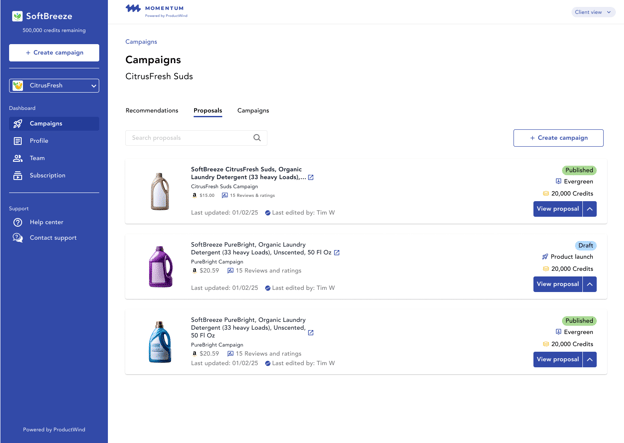
- Open your Momentum dashboard and go to the Proposals tab. Click “Create Campaign”.
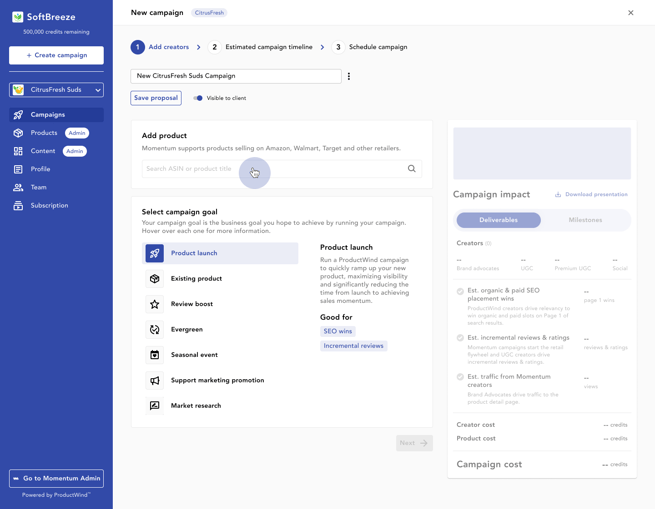
- In the “Add product” section, click the search bar.
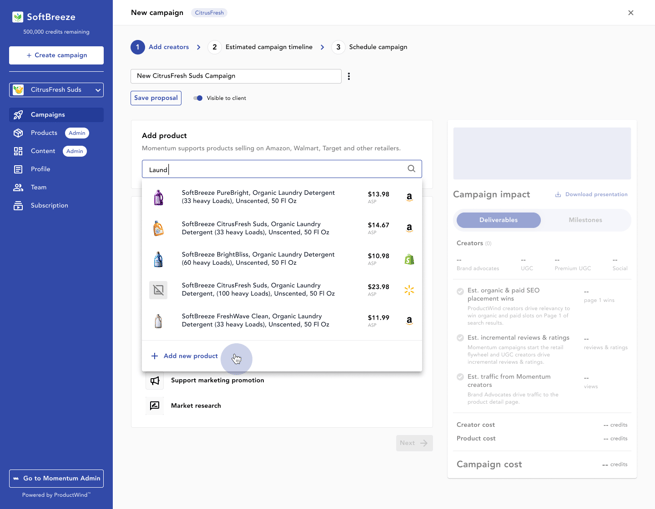
- Scroll to the bottom and select “Add New Product”.
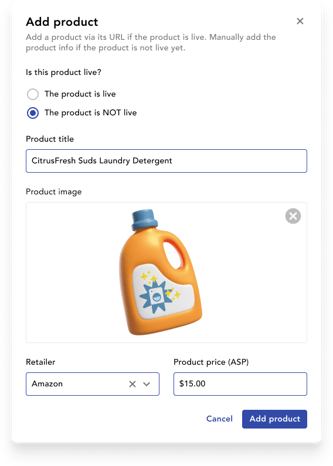
- Choose “The Product is NOT Live”.
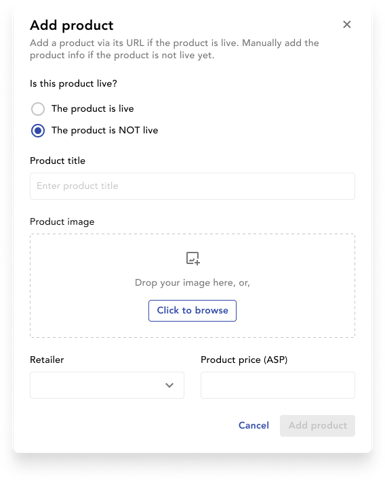
- Enter the required details (Retailer, MSRP, Product Name, etc.) and click "Add Product".
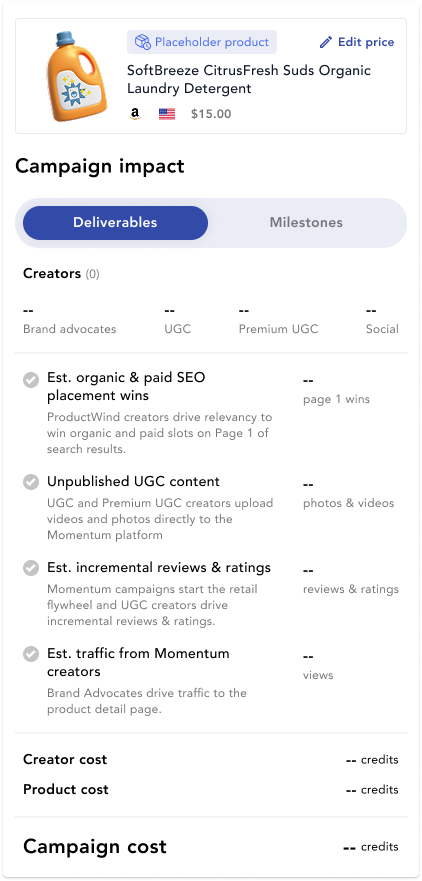
- Your product information will appear on the campaign impact card. Build your proposal and save it when done.
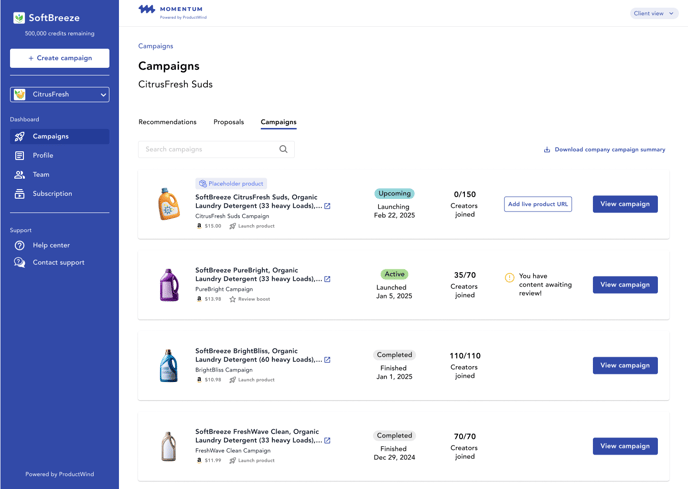
REMINDER:
You will need to add the live product URL before your campaign can automatically launch!
FAQs:
Q: Can I schedule a campaign with a product placeholder?
A: Yes! You are able to create and schedule a campaign using a product placeholder.
Q: Can I update the product URL on the scheduled launch date?
A: Yes! You are able to update the link on the same day the campaign is scheduled to go live.
Q: What if the product price in the URL is more than the price I put for my product placeholder?
A: If the product cost is more than what is showing in your proposal, you will be prompted to use more credits for the campaign.
Q: What if I run out of credits and don't have enough to launch my campaign?
A: If you need to purchase additional credits in order to launch your campaign, you will be prompted to buy credits in order to launch!
Q: What if my product price is less than what I put in the product placeholder, do I get those unused credits back?
A: If your product price is less than what you inputted in the product placeholder, the unused credits will be put back in your account.
Related Article(s):
- Different Creator & Campaign Types